Why On-Device Silence Removal on Mac is the Superior Choice
As creators produce more unscripted video content—including technical walkthroughs, Zoom recordings, podcast episodes, and YouTube presentations—the initial "dead air extraction" becomes the biggest bottleneck in post-production.
Many creators first encounter cloud-based AI editing tools. While browser tools sound appealing in marketing videos, they introduce major friction in real Mac workflows:
- Crushing Upload Times: A 20 GB 4K file takes about 45 minutes to upload on a 60 Mbps connection, stalling your editing flow before you can even begin.
- Recurring AI Credit Meters: Web apps charge per-minute fees or require recurring monthly subscription tiers, penalizing creators who shoot long takes. Compare the numbers in our TimeBolt alternative and offline Descript alternative pages.
- Zero Privacy: Proprietary client interviews, personal thoughts, and raw unedited mistakes are uploaded to third-party cloud servers.
- Upload Dependency: If you need to edit large video files, uploading multi-gigabyte files to cloud web tools is slow and impractical.
Modern Apple Silicon Macs have remarkable computational power. With Cut Video Gaps, heavy video processing runs directly on your Mac using on-device Whisper and FFmpeg. Your video and audio never leave your Mac. A small account and quota check runs online.
How to Cut Silence from Video on Mac: 4 Simple Steps
1Download Cut Video Gaps for Mac
Download the free beta installer from our Download page. Open the DMG file, drag the application icon into your Applications folder, and launch the app.
The app runs natively on any Apple Silicon Mac running macOS 13 or later. (A Windows version is in development and Intel Mac support is planned — waitlist is open).
2Import Your Video File
Drag and drop your raw MP4, MOV, MKV, or audio recording into the Cut Video Gaps window. The app immediately begins local speech recognition using OpenAI's Whisper model bundled in a local Python runtime on your Mac.
Because Whisper transcribes spoken dialogue rather than just reading volume levels, it automatically recognizes pauses in English, Hindi, and Punjabi without clipping natural speech. Learn more in our multilingual silence removal guide, or see the full workflow in how Cut Video Gaps works.
3Fine-Tune Cuts on the Visual Timeline
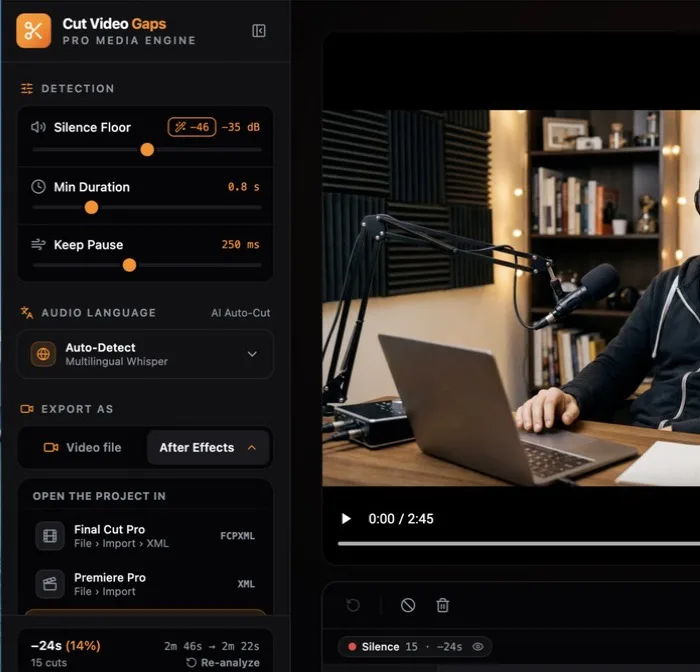
Review every detected silence gap on the timeline. You can adjust the silence threshold to be more aggressive or more conservative, customize pre-and post-cut padding to preserve natural breath sounds, and click any individual cut to keep or discard it.
4Export to Your Editor or a Trimmed Video
Choose your desired output based on your editing workflow:
- Final Cut Pro XML: Exports a lightweight XML file directly to your disk. Import into FCP for a fully editable, non-destructive rough cut. Read our Final Cut Pro tutorial for detailed steps.
- Premiere Pro XML (new in 1.0.9): An XML project you bring in with File › Import. Clips point at your original media: no re-encode, frame-accurate, source timecode kept.
- After Effects script (new in 1.0.9): A .jsx script that builds the cut composition from your original media when you run it with File › Scripts › Run Script File.
- Trimmed video file: Saves a trimmed copy on your Mac using local FFmpeg, keeping the original container where possible (MP4, MOV, M4V or MKV; formats such as WebM export as MP4), ready to share or import into any editor.
- Clean audio: Audio-only files (WAV, MP3, M4A, AAC, FLAC, AIFF) export as a trimmed audio file.
Recommended Settings for Different Types of Content
Different types of video recordings benefit from different silence sensitivity settings:
Fast-Paced YouTube Videos
Set a lower pause threshold (e.g., 0.3s) and tight padding (100ms) to create energetic jump cuts that keep viewer retention high throughout the video.
View YouTube Creator Workflow →Podcast Interviews & Discussions
Set a relaxed pause threshold (e.g., 0.8s) and generous padding (200ms) so natural conversational pacing between host and guest remains authentic.
View Podcast Workflow →