Frequently Asked Questions
Practical answers for using Cut Video Gaps day to day: getting past the macOS security prompt, choosing settings, fixing clipped words or leftover dead air, exports, and what happens with your data.
Looking for the basics? Uploads and privacy are covered in why local processing, the two detection modes in Fast Cut vs AI Auto Cut, and system requirements on the download page.
Installing and updating
macOS says Cut Video Gaps can't be opened. What do I do?
Because this is an independent beta build, macOS Gatekeeper may say Apple cannot check the app for malicious software. Try to open the app once and click Done, then go to System Settings > Privacy & Security, scroll to the Security section and click Open Anyway next to the message about Cut Video Gaps. Confirm with your password or Touch ID and it opens normally from then on. On macOS 13 and 14 you can also Control-click the app in Applications and choose Open; macOS 15 and later removed that shortcut.
How do I update to a new version?
Since version 1.0.7 the app updates itself silently in the background, so you don't need to download each release by hand. The changelog lists what changed in each version.
Does Cut Video Gaps support Windows or Intel Macs?
Currently, the public beta runs natively on Apple Silicon Macs running macOS 13 or later. A Windows 10/11 desktop version is in development and Intel Mac support is planned. You can join our waitlist on the download page to receive early beta invitations as soon as new builds drop.
Getting clean cuts
What settings should I start with?
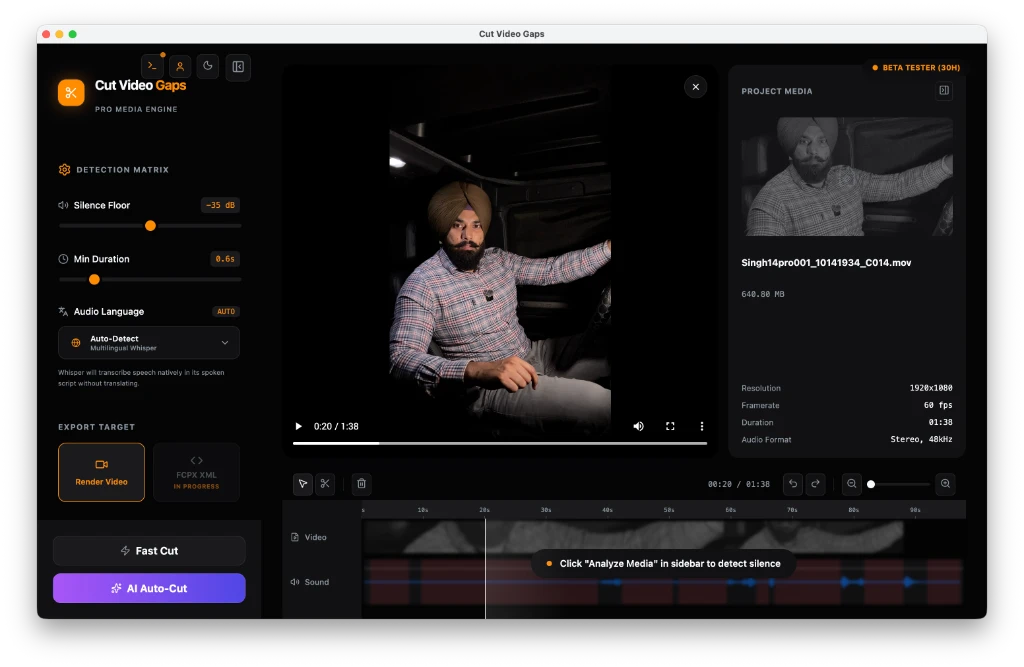
For most indoor podcast and voiceover recordings, a silence threshold between -30 dB and -40 dB with a minimum pause of 0.4 to 0.7 seconds is a good starting point. The ideal threshold sits a few decibels above your room's noise floor, so a quiet room can go lower and a noisy one needs a higher value.
Some words are getting clipped. How do I fix it?
Clipping usually means the threshold is too close to normal speaking volume, so quiet syllables at the ends of words fall below it. Lower the threshold (for example from -30 dB toward -40 dB), add more padding around cuts on the timeline, or switch to AI Auto Cut, which uses speech recognition to find where words begin and end. Since version 1.0.7, AI Auto Cut also checks its cuts against real silence, so fewer words get clipped.
Dead air is still left in my video. Why?
If the threshold is below your room's noise floor, background noise such as air conditioning or microphone hum is treated as sound and those pauses are never cut. Raise the threshold a few decibels, shorten the minimum pause length, or use AI Auto Cut, which looks for speech rather than volume.
Can I keep a pause on purpose?
Yes. Every detected cut appears on the timeline before export. Delete the cuts you want to keep as pauses, or widen the padding for a more relaxed pace, then export.
Exports and other editors
Does Cut Video Gaps change my original video files?
A Final Cut Pro XML export is non-destructive: it points at your original media and places the trimmed clips on a new timeline. An MP4 export renders a new video file. Because the app is still in beta, the terms of use recommend keeping backup copies of raw footage before processing.
My audio comes into Final Cut Pro as mono. Is that expected?
Not any more. Version 1.0.8 changed Final Cut Pro XML exports so audio imports as stereo. If you still see mono, make sure the app has updated to 1.0.8 or later.
Does it work with Premiere Pro or DaVinci Resolve?
Since version 1.0.9 you can export Premiere Pro XML and an After Effects script alongside Final Cut Pro XML; all three reference your original media with no re-encode. Testing with other editors, including DaVinci Resolve, is on the roadmap. In the meantime you can export a rendered MP4 and use it in any editor.
An export is taking too long. Can I stop it?
Yes. Since version 1.0.7 exports have a Cancel button, and failed exports show clearer error messages.
Quota, privacy and licensing
Can I get more than the free beta hours?
Yes. On top of the 15 free hours/month, you earn +1 hour for your first export, +2 hours for sharing quick feedback after an export, and +5 hours each time a friend you invite finishes their first export (they get +2 hours when they join with your code). Find your invite link in the app under Settings, then Invite & Earn. Bonus hours are only awarded for actions that can be verified, so posting on social media on its own does not earn hours.
What does the app know about my videos?
Nothing about their content. The app does not collect filenames, video durations, transcripts or video frames. The only network call is a small account check that verifies your account and tracks your monthly beta quota.
Who owns the videos I edit?
You do. You keep full ownership of all footage, audio, project files and rendered output processed with Cut Video Gaps; no ownership or copyright is claimed over your content.
Can I use the free beta for client or commercial work?
Yes. The beta's monthly quota covers personal or commercial use, and because footage stays on your Mac, client material is never uploaded anywhere.
Will languages other than English, Hindi and Punjabi work?
Whisper recognizes many languages, so other languages may work, but only English, Hindi and Punjabi have been tested so far. Documenting results for languages such as Spanish, French and German is on the roadmap.
Getting help
How do I report a bug?
Use Report a Problem in the app's Help menu, open an issue on GitHub, or email cutvideogaps@gmail.com. Include your Mac model, macOS version, the video format and, if relevant, your Final Cut Pro version. Never attach confidential footage to a public bug report.
v1.1.0 · macOS 13+ · System requirements and download
Still Have a Question?
Email cutvideogaps@gmail.com, or download the free beta and try it on your own footage. 15 free hours/month.
Related Video Editing Guides
How to Remove Silence from a Video on Mac (No Uploads)
The complete guide to local silence removal without cloud uploads or AI tokens.
How Cut Video Gaps Removes Dead Air
Explore the step-by-step workflow from file import to interactive timeline export.
Automatic Jump Cuts on Your Mac, No Uploads
Find the pauses, fillers and restarts automatically and hand a clean timeline to your editor.