The Unique Challenge of Editing Hindi and Punjabi Content
South Asian creators represent one of the fastest-growing creator ecosystems globally, producing hundreds of thousands of hours of commentary, political analysis, regional podcasts, tech reviews, and educational lectures.
However, editing conversational Hindi and Punjabi presents unique post-production challenges. Unlike formal written text, spoken Hindi and Punjabi often rely on compound verbs, reflexive particles, conversational connectors (such as "matlab", "toh fir", "veere"), and thoughtful hesitations as the speaker structures their thoughts.
When video editors attempt to use conventional English-centric silence removal tools or decibel-based noise gates:
- Sentence beginnings get truncated because the speaker's initial consonants don't immediately trigger the decibel threshold.
- Phrases ending in nasalized vowels or subtle aspirated sounds are cut short, making the audio sound jarring and amateurish.
- Editors spend hours zooming into waveforms to undo dozens of false cuts.
This is why speech-aware recognition is essential for Indic video editors. Learn more on our multilingual silence removal page.
How Cut Video Gaps Speeds Up Your Rough Cut Workflow
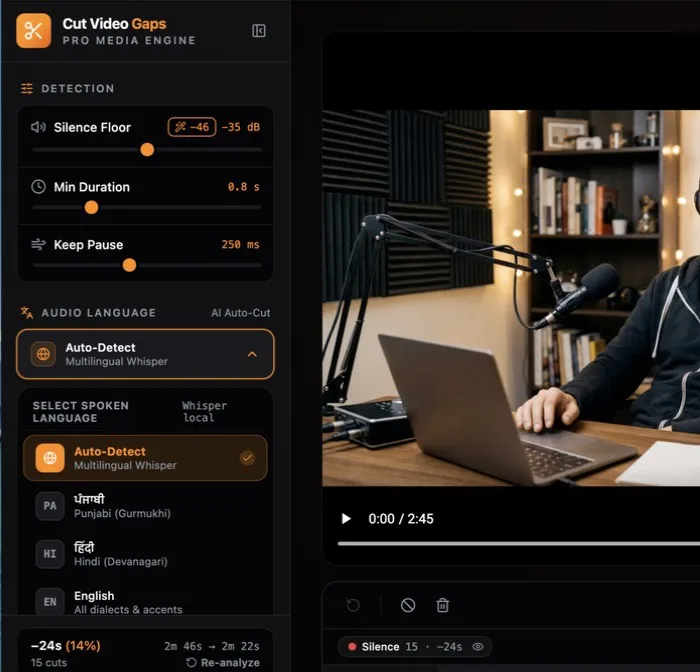
Cut Video Gaps eliminates hours of manual scrubbing by pairing OpenAI's open-source Whisper model with local FFmpeg processing on your Mac. Here is how South Asian creators streamline their video pipeline:
1. Automatic Language Detection
You don't need to manually configure language models or select dialect settings. When you drag your video in, Whisper automatically identifies whether the dialogue is English, Hindi, Punjabi, or a mix of languages (Hinglish/Punglish), ensuring natural sentence comprehension.
2. Customizable Padding for Natural Cadence
Hindi and Punjabi conversational rhythms feel rushed if cuts are made too tight against words. With Cut Video Gaps, you can set pre-cut and post-cut padding (typically 120ms to 180ms) so each phrase maintains its natural, human breathing room.
3. Visual Review Before Any File is Touched
The interactive timeline displays every detected gap in orange. If you told a joke and left a deliberate pause for comedic timing, you can easily click that gap to unmark it and keep the pause intact.
Export Directly to Your Editor or a Trimmed Video
Once your cuts are reviewed, you can export your rough cut in two convenient formats:
- Final Cut Pro XML (.fcpxml): Ideal for professional editors who want non-destructive timeline clips with full access to camera handles, color grades, and audio tracks. Step-by-step instructions are available in our Final Cut Pro silence removal guide.
- Premiere Pro XML (new in 1.0.9): An XML project you bring in with File › Import. Clips point at your original media: no re-encode, frame-accurate, source timecode kept.
- After Effects script (new in 1.0.9): A .jsx script that builds the cut composition from your original media when you run it with File › Scripts › Run Script File.
- Trimmed video file: Ideal for rapid turnaround, client reviews, or editors working in DaVinci Resolve. Keeps the original container where possible (MP4, MOV, M4V or MKV). See our Mac video tutorial.
Zero Cloud Uploads & Total Cost Control
Creators filming in India or regional production hubs often face variable upload speeds when handling multi-gigabyte 4K camera files. Because heavy processing runs on your Mac using on-device Whisper and FFmpeg, there is zero upload delay and no monthly cloud API or token bills. A small account and quota check runs online. You can edit 15 free hours/month in our public beta.