The Mechanics: How to Remove Silence From Video on Your Mac
When editing dialogue, podcast episodes, tutorials, or video logs, manual razor cutting is one of the most repetitive chores in post-production. An editor must listen through every sentence, identify hesitation or empty space between clauses, place cut points with the razor tool, delete the gap, and ripple-delete to close the timeline space.
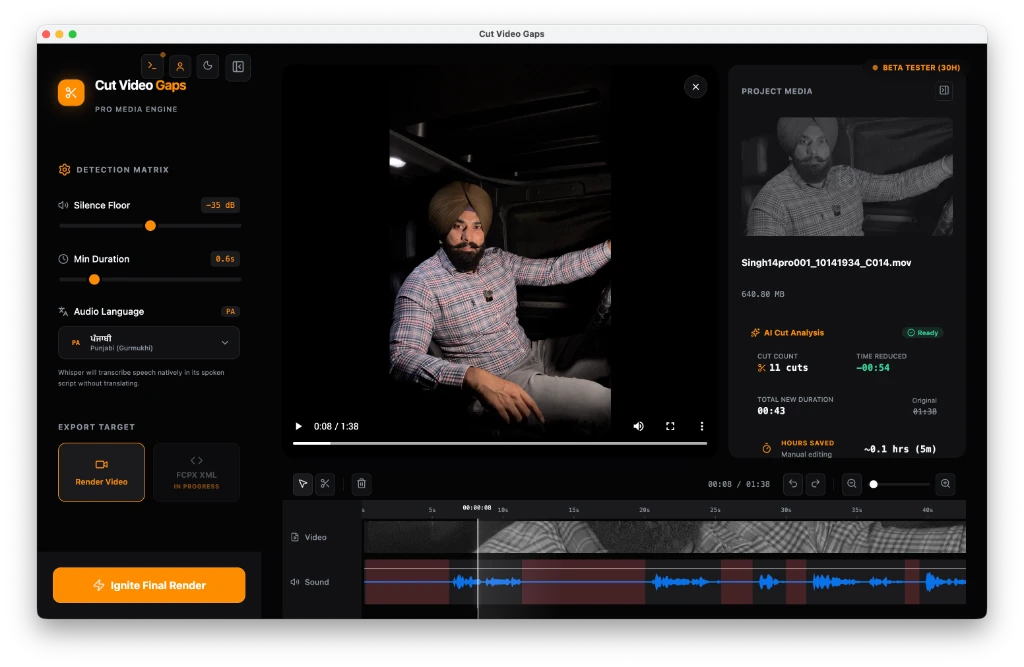
Cut Video Gaps transforms this manual scrubbing process into an automated workflow. Built as a native desktop app for Mac (currently macOS 13+ on Apple Silicon; a Windows version is in development and Intel Mac support is planned), the software brings together audio analysis and speech transcription tools right onto your machine.
Because computation runs on your Mac, your raw footage never uploads to third-party web servers. A small account and quota check exists only to verify user accounts and monitor monthly beta quotas, while your media files stay completely secure on your internal disk.
Step-by-Step Workflow in Cut Video Gaps
Here is the verified four-step editing sequence confirmed for the current public beta (v1.1.0):
Import Your Media Footage
Open Cut Video Gaps on your Mac and load your media file. The application accepts common video and audio containers including MP4, MOV, MKV, and dedicated audio files. Because files are read locally from your drive, loading takes mere moments with zero upload lag.
Choose Your Gap Detection Mode
Select between two distinct cutting engines based on your project requirements:
- Fast Cut: Performs rapid decibel-threshold silence detection using local FFmpeg. It is fast and efficient for crisp studio audio with a clear difference between voice and ambient noise.
- AI Auto Cut: Executes local Whisper speech recognition to transcribe spoken dialogue and detect authentic pauses. Language is auto-detected, with confirmed support for English, Hindi, and Punjabi across everyday conversational takes.
Review and Adjust Cuts on the Visual Timeline
Once the analysis completes, all identified silence intervals are clearly marked on a visual timeline. You maintain complete creative control: you can inspect individual cuts, drag boundary handles to resize gap padding, or delete cuts you want to keep before exporting.
Export to Final Cut Pro, Premiere Pro, After Effects or Video
Export your condensed sequence as a Final Cut Pro XML file (FCPXML 1.10, Final Cut Pro 10.6+) for non-destructive multi-clip editing, as a Premiere Pro XML project (File › Import), or as an After Effects .jsx script that builds a composition (File › Scripts › Run Script File). All three point at your original media: no re-encode, frame-accurate, source timecode kept. Or save a trimmed video file via local FFmpeg, keeping the original container where possible (MP4, MOV, M4V or MKV), or clean audio for audio-only files.
Verified Sample Session Benchmark
To provide realistic expectations grounded strictly in verified testing, here are the real-world metrics from one sample session conducted by the creator:
Note: In this one sample session, over half of the raw duration consisted of silence and thinking pauses. Individual recordings naturally vary based on subject matter and presentation style.
Speech Detection vs Silence Detection
A frequent problem with basic decibel gate utilities is that they only measure sound volume. If a speaker sighs, takes a quiet breath before a key word, or begins a phrase with a soft fricative consonant, simple decibel gates often chop off the beginning or end of words.
In AI Auto Cut mode, Whisper transcribes dialogue and recognizes linguistic structures. The software evaluates where actual spoken words begin and end, leaving natural breathing space while isolating genuine dead air. For a full comparison of these two approaches, review our Fast Cut vs AI Auto Cut guide.
To learn more about local security and why avoiding cloud uploads protects client footage, read our article on why local processing matters, or visit our Hindi silence removal guide for regional language workflows.