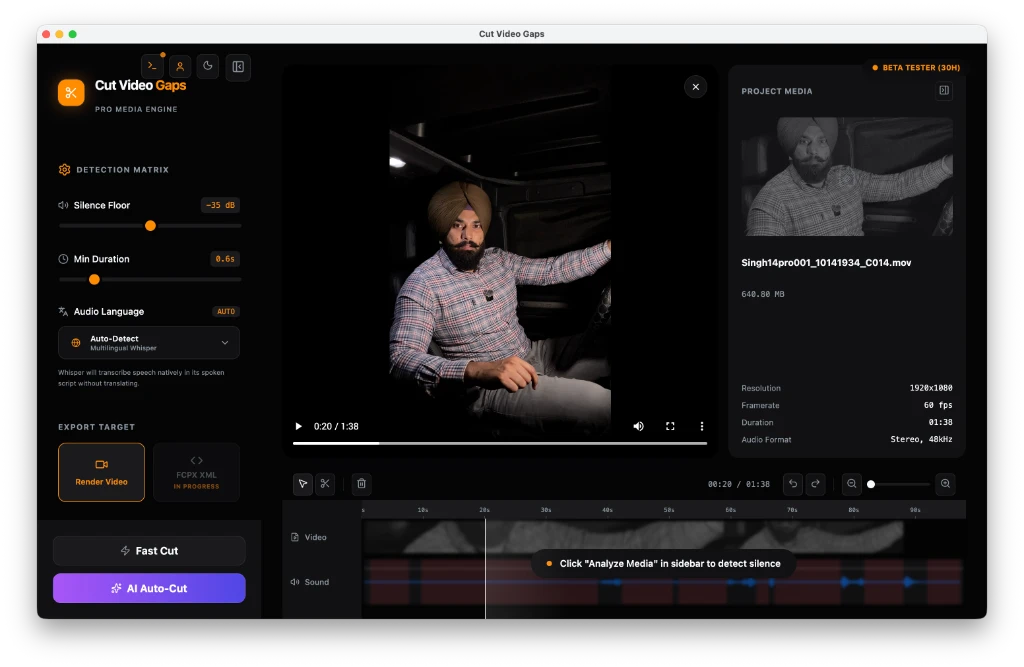
Silence Detection vs Speech Detection: Core Architecture
Video editors frequently encounter raw footage with unwanted hesitation, thinking pauses, and dead air. Traditionally, automated software approached this problem through simple amplitude gating: if the audio level drops below a set decibel number for longer than a specified duration, the software marks that section as silence.
While amplitude gating is fast, human speech is not solely defined by volume. Many conversational phrases begin with quiet unvoiced consonants (such as "th", "f", or "s") or end with trailing syllables that fall near ambient noise floors. A volume-only approach frequently clips the edges of genuine words.
In Cut Video Gaps, creators can choose between two distinct approaches based on audio fidelity:
- Fast Cut: Pure silence detection utilizing local FFmpeg. It analyzes audio volume levels against a decibel threshold to identify dead air quickly.
- AI Auto Cut: Speech detection utilizing local Whisper speech recognition. It transcribes audio on your Mac hardware to determine grammatical sentence boundaries and separate intentional pauses from dead air.
Mode 1: Fast Cut (FFmpeg dB-Threshold Mode)
Fast Cut is designed for maximum speed and simplicity. It relies on the bundled local FFmpeg engine executed on your Mac CPU hardware without sending requests to external web APIs.
When to Use Fast Cut:
- Studio-recorded voiceovers with very low background noise and acoustic dampening.
- Screencasts where the presenter speaks loudly with clear separation from keyboard clicks.
- Urgent deadlines where near-instant processing of long video files is the top priority.
- Initial rough passes on clean single-speaker presentations.
Because Fast Cut computes simple mathematical amplitude differences across audio buffers, it scans through minutes of video in just a few seconds, making it the fastest way to prune dead air.
Mode 2: AI Auto Cut (Local Whisper Speech Recognition)
AI Auto Cut represents a speech-aware approach. Rather than guessing pauses from audio peaks and valleys, Cut Video Gaps executes OpenAI's open-source Whisper model locally inside a bundled Python runtime on your Mac.
When to Use AI Auto Cut:
- Conversational discussions and interviews where speech volume naturally ebbs and flows.
- Regional and multilingual dialogue, including confirmed support for English, Hindi, and Punjabi across conversational takes.
- Recordings with subtle ambient background sounds (air conditioning hum or room reverb) that confuse decibel gates.
- Content where preserving natural pre-speech breathing or soft trailing word endings is critical.
Because Whisper transcribes audio tokens locally on your Mac, there are zero third-party cloud API calls and no token consumption fees.
Comparison Breakdown: Technical Differences
| Feature | Fast Cut | AI Auto Cut |
|---|---|---|
| Underlying Engine | Local FFmpeg volume analysis | Local Whisper speech recognition |
| Processing Speed | Near-instant decibel scan | Moderate (transcription token pass) |
| Language Awareness | Agnostic (measures amplitude) | Auto-detects English, Hindi, Punjabi |
| Cloud Uploads | Zero uploads (100% on Mac) | Zero uploads (100% on Mac) |
| Timeline Adjustments | Interactive visual timeline | Interactive visual timeline |
Verified Sample Session Benchmark
To demonstrate real-world cut performance, here is the confirmed benchmark from one sample session tested by the creator:
Data recorded from one sample session. Speech cadence and recording acoustics determine exact results for each video.
Visual Review and Flexible Timeline Exports
Regardless of whether you choose Fast Cut or AI Auto Cut, Cut Video Gaps puts you in charge of every cut boundary. You can inspect gap markers directly on the visual waveform, resize boundaries to add padding, or delete individual cuts before exporting.
Once your review is complete, export your sequence in any of these formats:
- Final Cut Pro XML (FCPXML): Generates a clean sequence file that opens directly in Final Cut Pro with all edit points placed on the timeline non-destructively. See our Final Cut Pro silence guide.
- Premiere Pro XML (new in 1.0.9): An XML project you bring in with File › Import. Clips point at your original media: no re-encode, frame-accurate, source timecode kept.
- After Effects script (new in 1.0.9): A .jsx script that builds the cut composition from your original media when you run it with File › Scripts › Run Script File.
- Trimmed video file: Saves a trimmed copy through local FFmpeg, keeping the original container where possible (MP4, MOV, M4V or MKV; formats such as WebM export as MP4), for quick sharing or review.
- Clean audio: Audio-only files (WAV, MP3, M4A, AAC, FLAC, AIFF) export as a trimmed audio file.
For deeper insights on keeping media strictly on your computer, read our guide on why local processing protects your video or learn how to clean up podcast video recordings.